Sandbox guide — wallet by wallet
The sandbox is a throwaway copy of the SPT contracts running on Kadena mainnet. It lets you rehearse every step with your own wallet before the real sale. Same pages, same wallets, same signatures — a different contract, and worthless tokens.
Before anything else
- Test-SPT has no value and will be abandoned. It never becomes real SPT.
- The KDA you spend is real, but tiny. The sandbox sells test-SPT at a deliberately tiny price (shown on the page), and every transaction costs a normal network fee. What you spend goes to a throwaway account and is not refunded.
- The copy lives on chains 0, 1 and 2. Buying happens on chain 0.
- Every action is signed in your own wallet. These pages never hold a key.
What you need
- A little KDA on chain 0 in the account you will connect — enough for a fraction of a test-SPT plus network fees. A tenth of a KDA is plenty for the whole rehearsal.
- For a cross-chain move: a little KDA on the destination chain too (1 or 2), because the credit leg is paid there.
- One of the wallets below. All four have been tested end to end on the sandbox.
The steps, in order
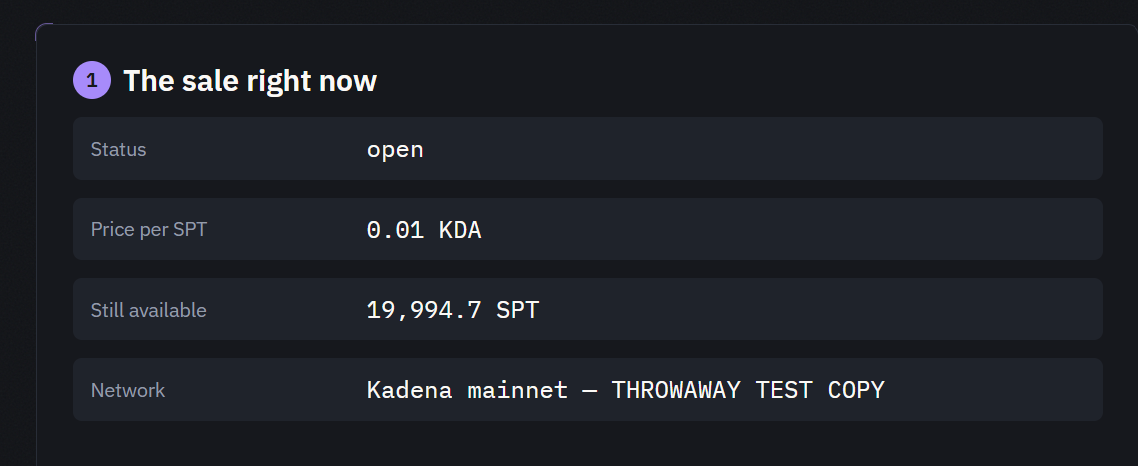
- Open Buy test-SPT — the sale page in sandbox mode. Step 1 shows the copy’s status, price and remaining reserve, read live from the chain.
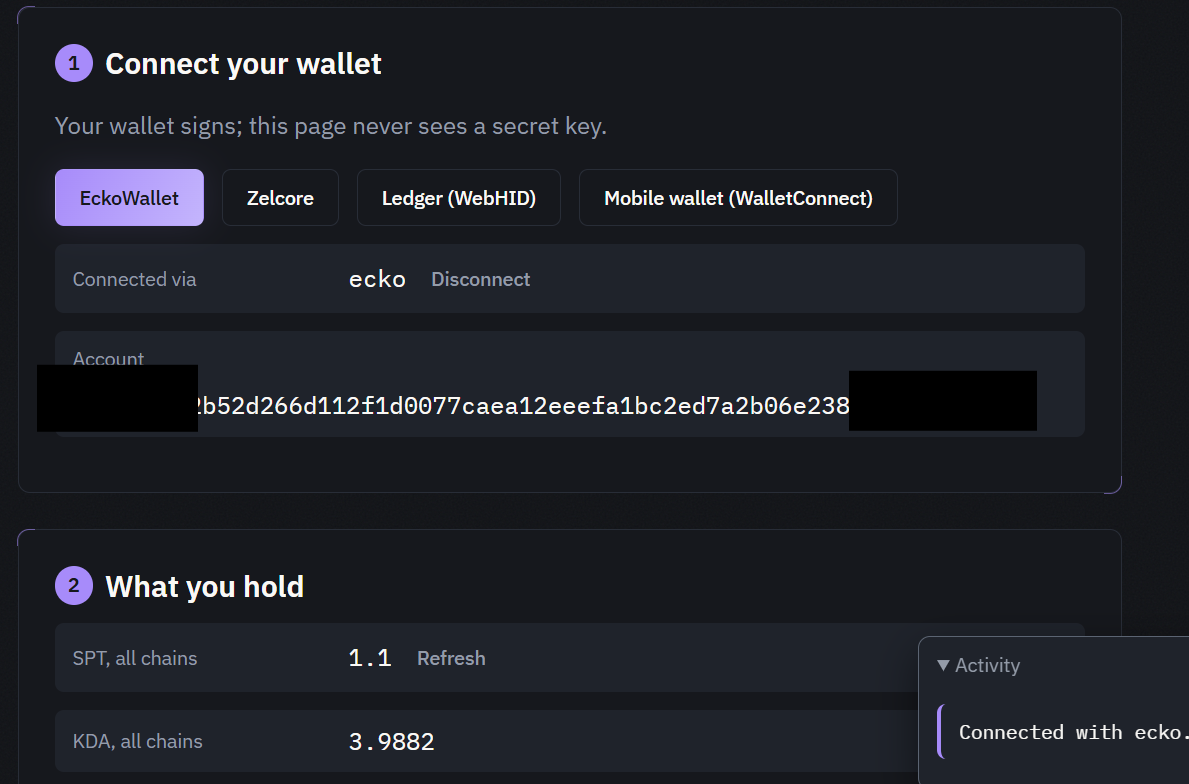
- Connect a wallet (step 2) with the button for your wallet — the wallet-specific notes are below. The page then shows your account and your KDA on chain 0.
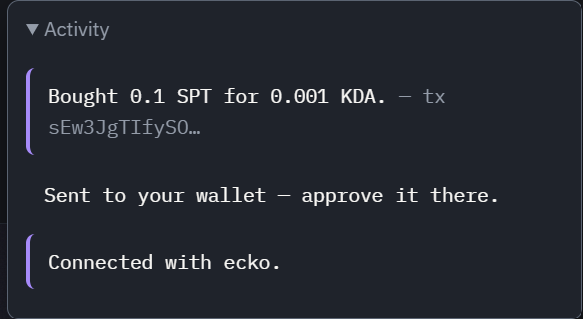
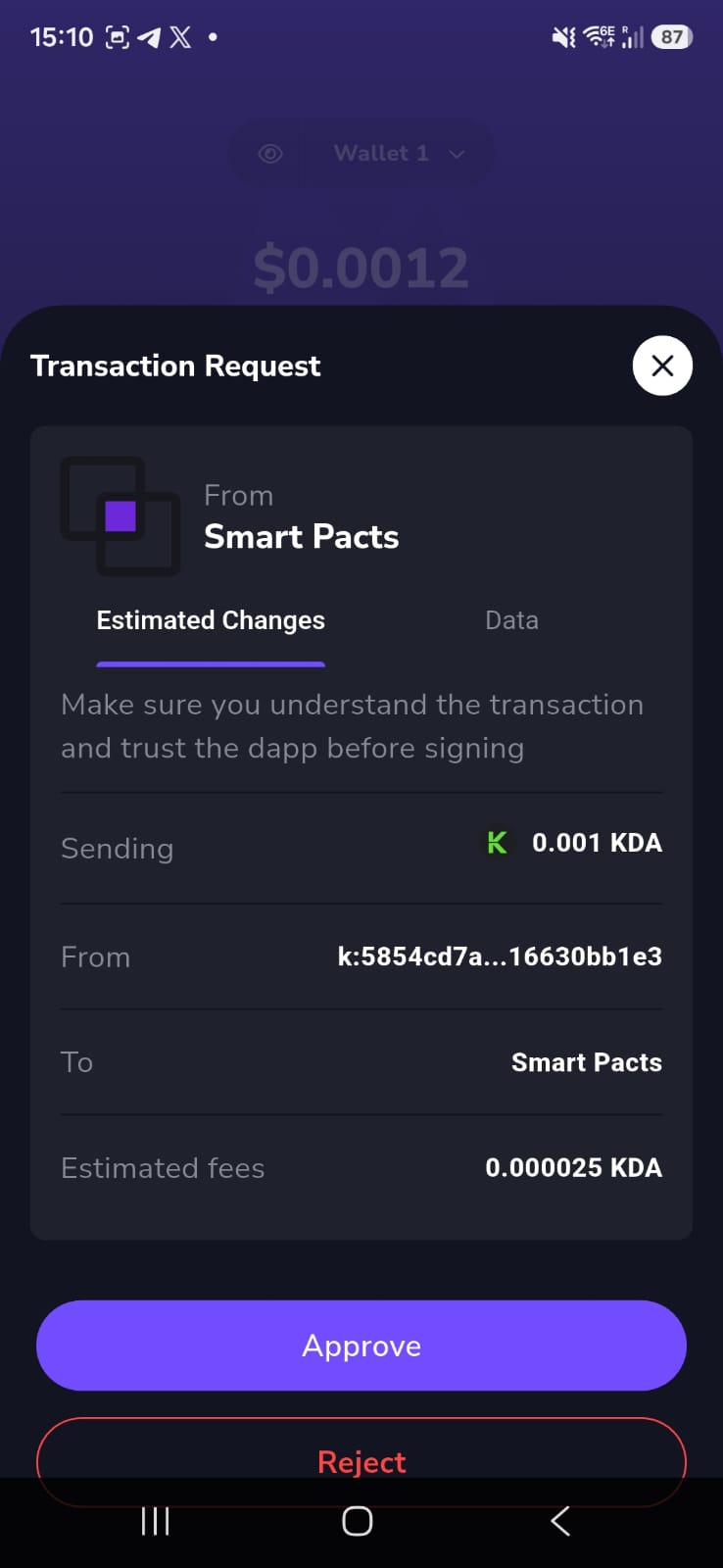
- Buy (step 3). The amount is pre-filled with 0.1 test-SPT; leave it, or make it smaller. Approve the transaction in your wallet. The Activity box reports “Bought 0.1 SPT for … KDA” with the transaction’s request key, usually within a minute.
- Open Your test-SPT and connect the same wallet. You will see your balance per chain, and can send, move, vote and claim from there.
EckoWallet (browser extension)
- Install eckoWALLET in Chrome and unlock it. In its settings, make sure the selected network is mainnet01 — the page refuses to continue on any other network and tells you which one it saw.
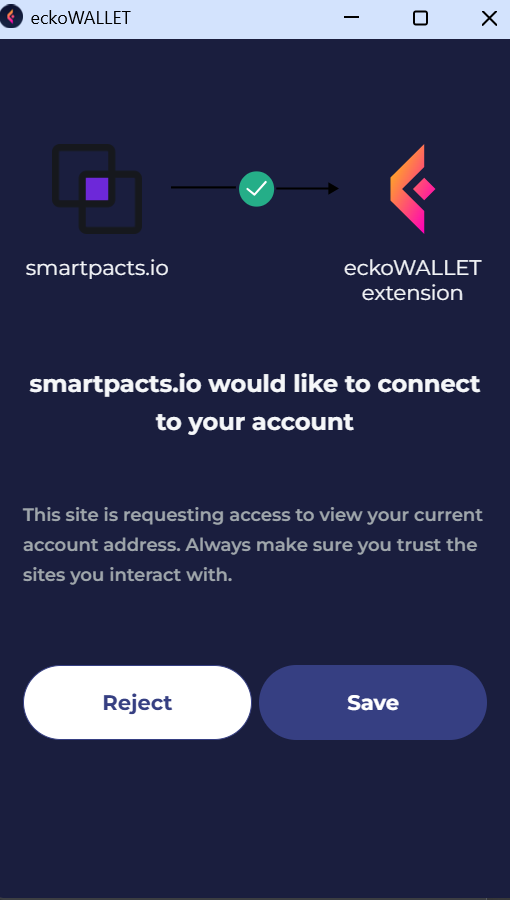
- Click EckoWallet. The extension opens a connect prompt; approve it.
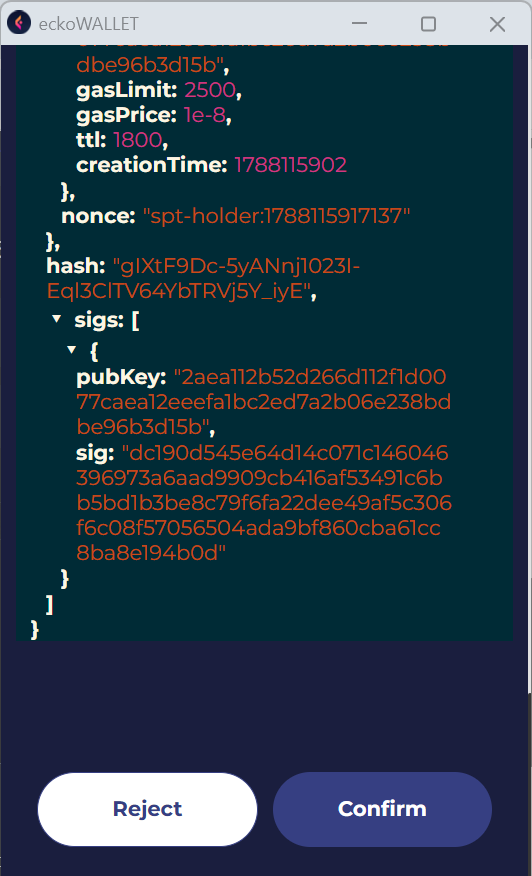
- When you buy, send, move, vote or claim, the extension opens a signing prompt that lists the capabilities you are granting (for a purchase: the KDA transfer for the exact price, and gas). Approve it. Declining shows “Signing declined in EckoWallet” on the page and nothing is sent.
- If you switch account or network inside the extension, the page drops the connection and asks you to reconnect — a signature for a different account is never accepted.
Zelcore (desktop app)
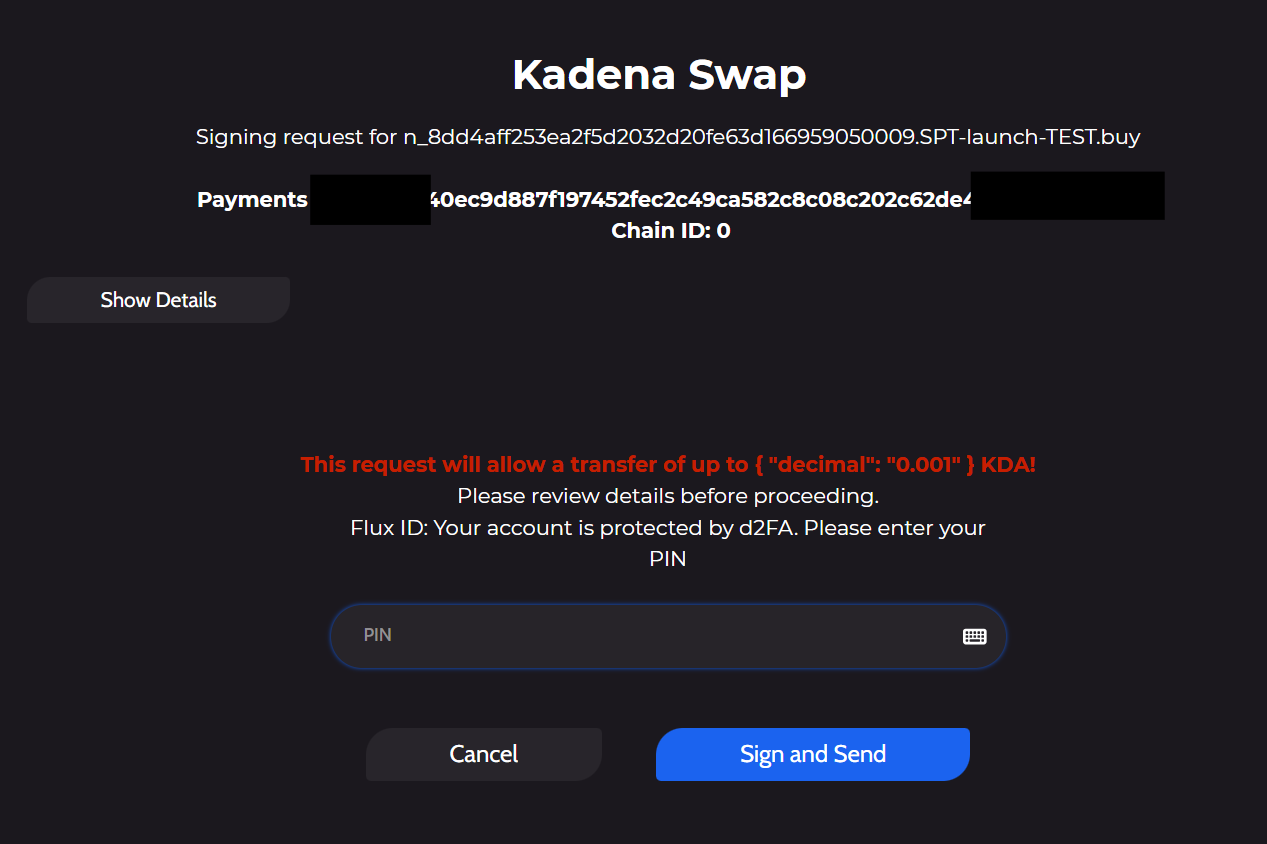
- Open the Zelcore desktop app on the same computer and log in, with the Kadena wallet enabled. The page talks to the app locally (on your own machine) — nothing goes through a server.
- Click Zelcore. The page asks the app for your
k:accounts and connects the first one. “Zelcore not reachable” means the app is not open or not logged in. - Each transaction opens a signing request inside the Zelcore app. Approve it there. Older Zelcore builds use Zelcore’s original signing flow: the app composes the transaction from the page’s request and returns it signed — the page then checks, field by field, that it is exactly the transaction you asked for before submitting it, and refuses anything else.
Ledger (hardware wallet, over USB)
- Use Chrome, Edge or Brave — the page talks to the device through WebHID, which Firefox and Safari do not offer. Plug the Ledger in, unlock it, and open the Kadena app on it.
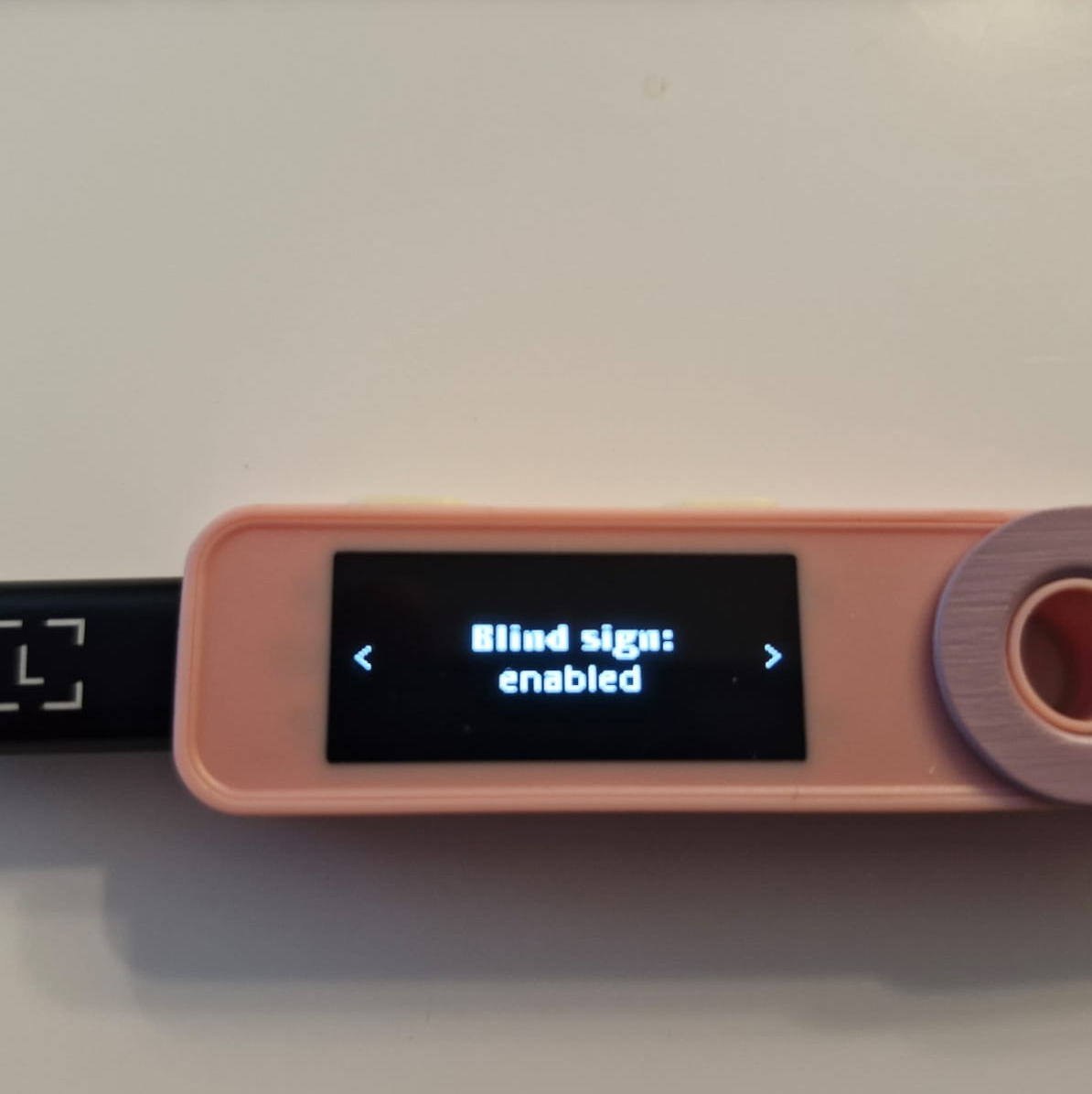
- In the Kadena app’s settings on the device, enable blind signing — the Kadena app signs the transaction’s hash, and refuses to do so while blind signing is off.
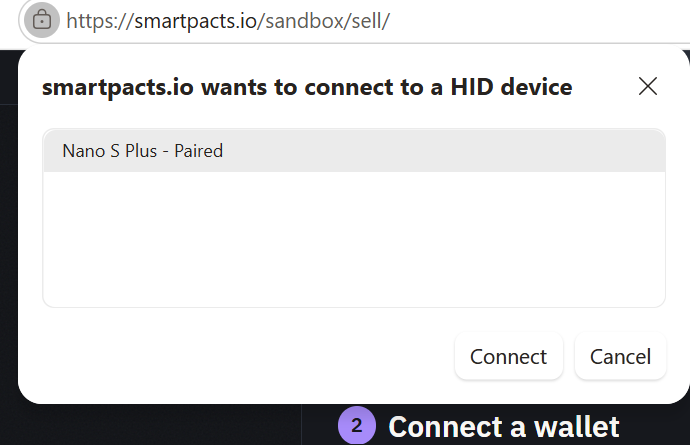
- Click Ledger (WebHID). The browser shows a device picker; choose your Ledger. The page
reads your public key from the device and connects the
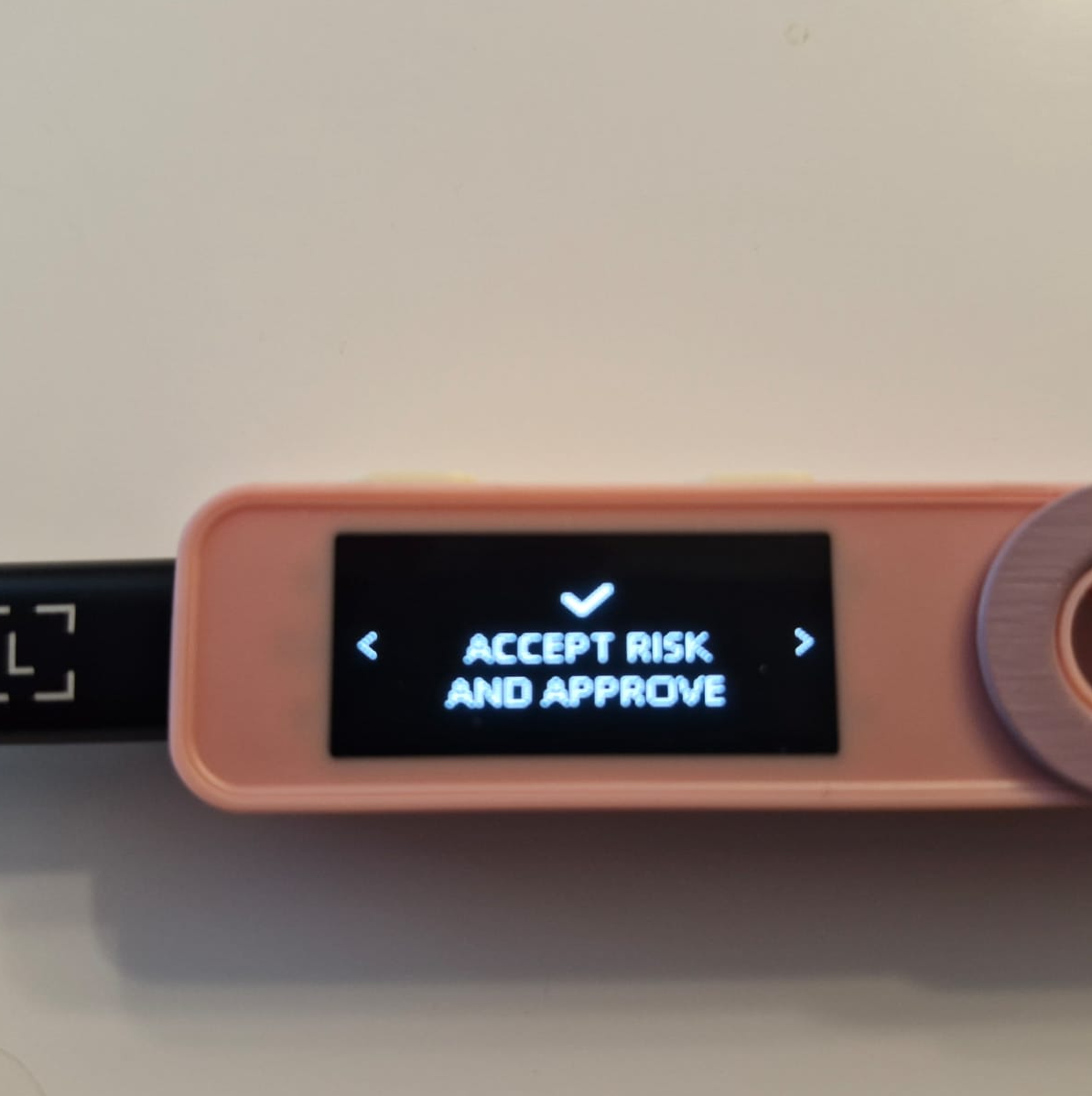
k:account for it. - For every transaction, look at the device — it asks you to approve the signature. The page says “Sent to your Ledger — look at the device” while it waits. If the device sleeps or you leave the Kadena app, reconnect on the page and try again.
Linx and other mobile wallets (WalletConnect)
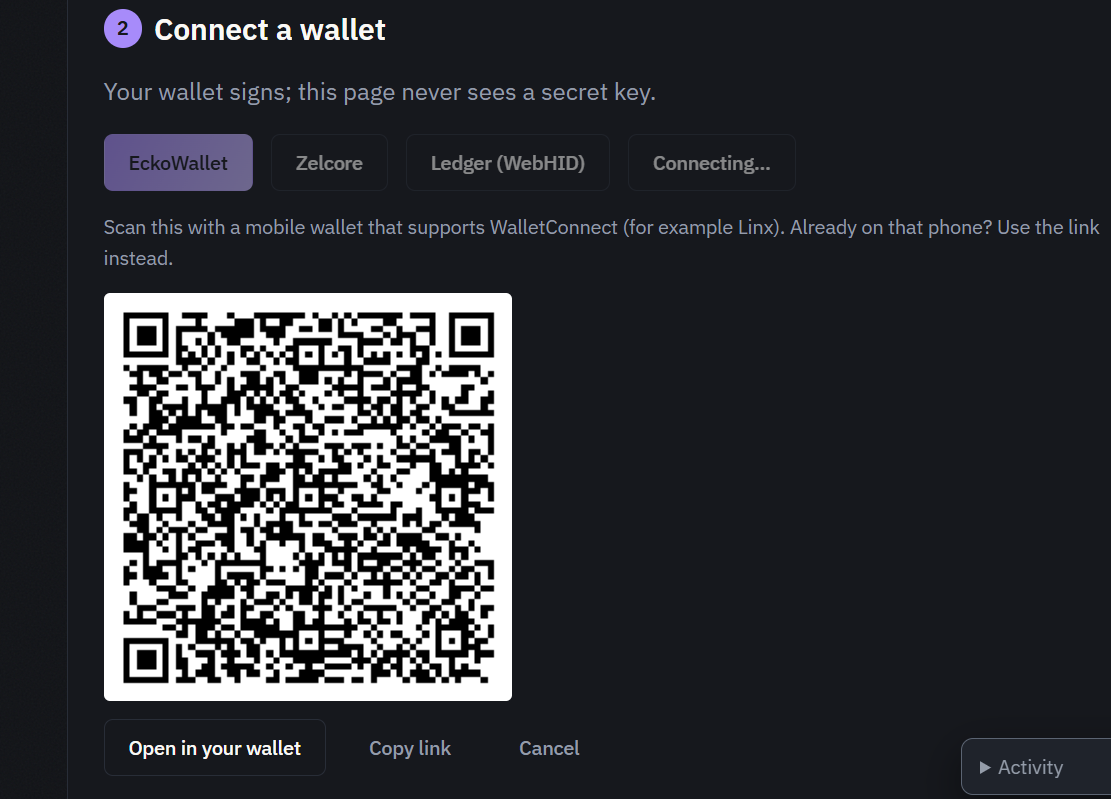
- Click Mobile wallet (WalletConnect). A QR code appears.
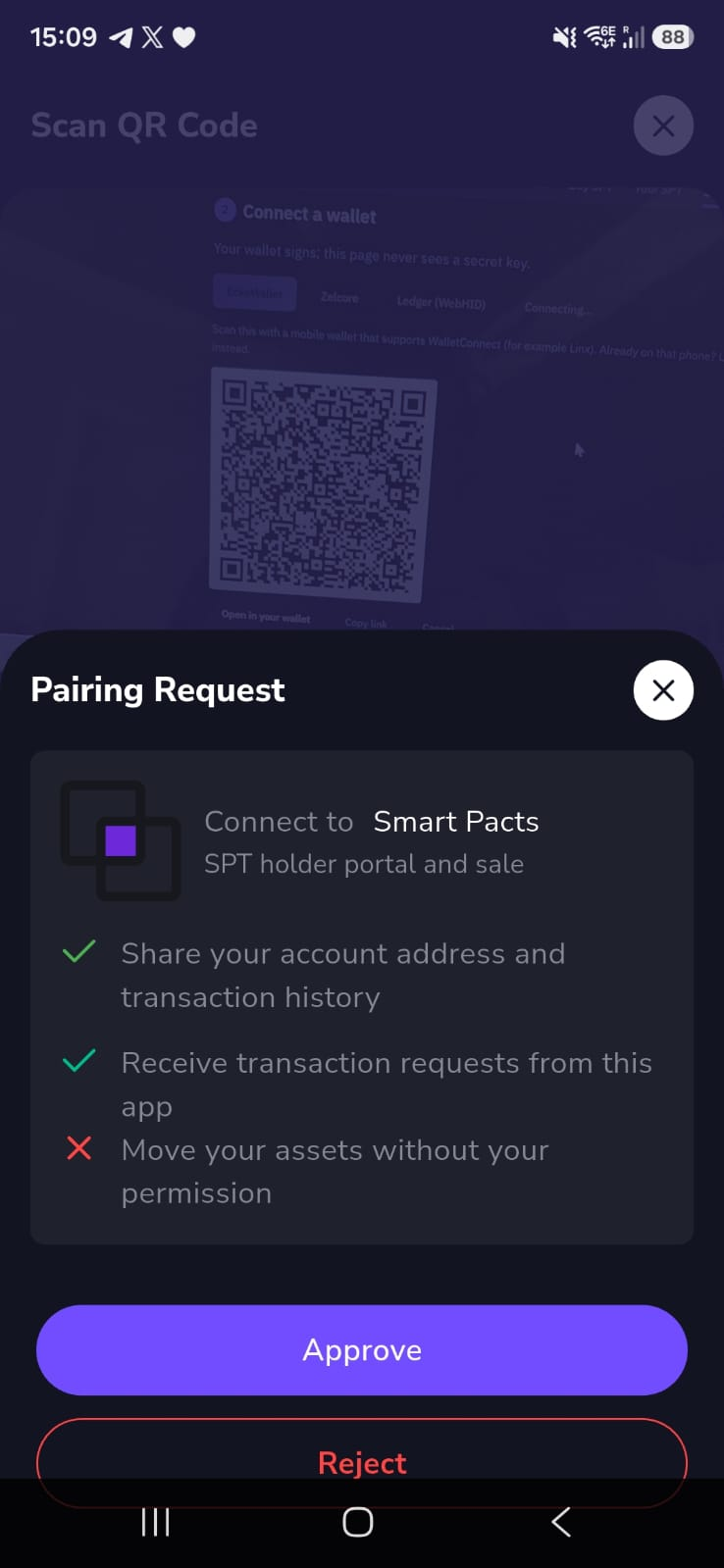
- On the phone, open Linx, use its scan function, and scan the code. Make sure the Kadena account you want is the active one in Linx. Approve the connection; the page shows your account within a few seconds.
- Already reading this page on the phone that holds the wallet? Use Open in your wallet under the QR code instead of scanning, or Copy link and paste it into the wallet.
- Each transaction appears in Linx as a signing request — approve it there. The page says “Sent to your phone — open the wallet app” while it waits, for up to three minutes. Declining shows “Signing declined on your phone”.
- Disconnect on the page also ends the session in the wallet. Reloading the page ends the connection too (nothing about it is kept in the browser) — just scan again.
Other wallets that support WalletConnect on Kadena are expected to work the same way, but only Linx has been tested on the sandbox.
On the holder page: send, move, vote, claim
- Send (step 3): pick chain 0 and any
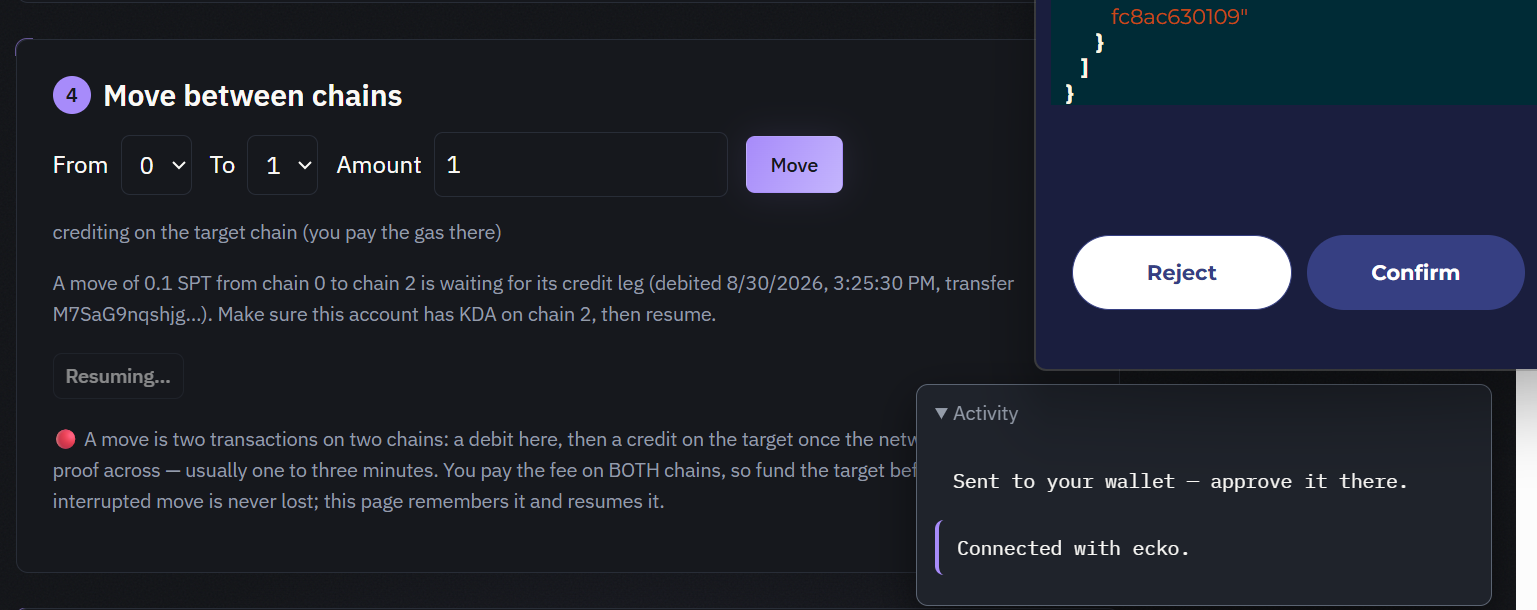
k:account — a second account of your own is the easiest — and an amount you hold. Whatever you send stops backing your vote on that chain. - Move between chains (step 4): a move is two transactions on two chains — a debit where the tokens are, then a credit on the destination once the network has braided the proof across (one to three minutes). You pay a fee on both chains, so the destination needs a little KDA. The sandbox offers chains 0, 1 and 2. If a move is interrupted after the debit, it is not lost: the page remembers it and shows a Resume paused move button under step 4.
- Vote (step 5): a test proposal exists on the copy. Voting opens on 1 September 2026 at 07:00 UTC and stays open for three days; before that the page tells you when it opens. Your weight is your balance on the chain you vote from.
- Claim awards (step 6): a test award round has been funded on the copy. It pays holders of record on 30 August 2026 at 19:00 UTC and becomes claimable on 31 August 2026 from 08:00 UTC. If you bought after the record date, the round shows nothing to claim for you — that is correct, not a fault.
If something goes wrong
Every refusal is explained in the Activity box at the bottom of the page. The ones you are most likely to meet:
| The page says | It means |
|---|---|
| EckoWallet is on “…” — select the mainnet01 network | The extension is on another network. Switch it, then reconnect. |
| Zelcore not reachable | The Zelcore app is not open or not logged in on this computer. |
| This browser has no WebHID | Ledger needs Chrome, Edge or Brave. |
| Ledger did not sign (rejected on device, or blind signing disabled) | Enable blind signing in the Kadena app on the device, or approve on the device. |
| No wallet approved the connection within 5 minutes | The QR code expired. Click the button again for a fresh one. |
| The wallet connected for a different network | The mobile wallet’s active account is not on Kadena mainnet. Switch it and scan again. |
| Not enough KDA … on chain 0 | Fund the connected account on chain 0 before buying. |
| The credit leg is paid on chain N, and this account has no KDA there | Fund the destination chain before moving. |
| Move paused on the way to chain N — nothing is lost | The debit landed; press Resume paused move once the destination is funded. |
Nothing on these pages can spend from your account without a signature you approved in your wallet, and nothing is submitted unless it is exactly the transaction the page asked for.